


Back to school
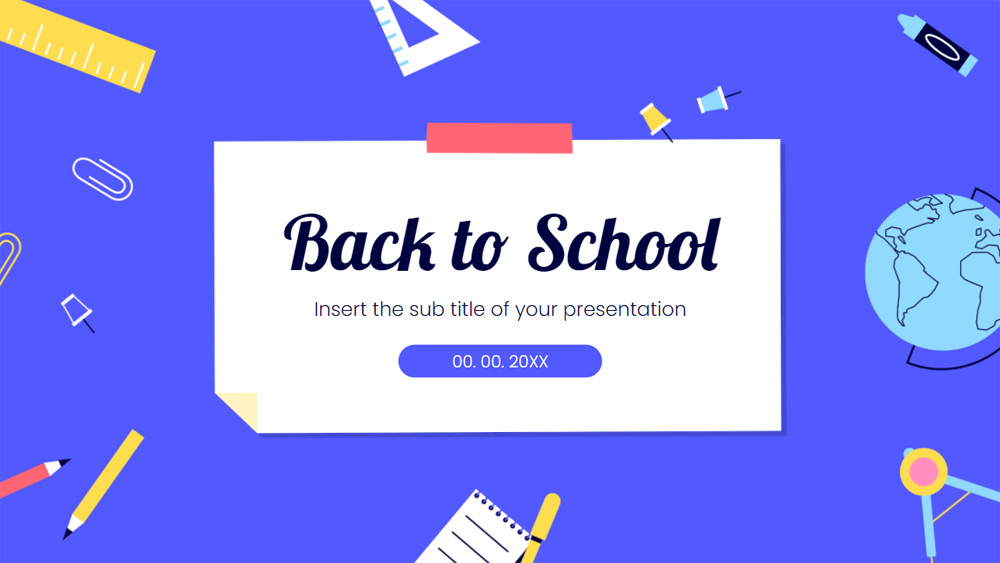


Let's go back to school while preparing a lot of fun activities for our students! That's why this new free presentation template from PPTMON offers a slide design with backgrounds and illustrations full of creativity. For example, the color palette has three main characters: purple, yellow and red to give it a lively touch, be creative and spark the imagination! The cartoon background features some patterns and action lines taken from different geometric designs and illustrations. Thus, this template with a very colorful and youthful slide design is very attractive, making it a great way to start building fruitful relationships with your class and parents. Plus, the variety of illustrations that match your educational theme and campaign objective will impress your audience. You can also download and customize this template in Google Slides, PowerPoint and Keynote.
Preview
Features
- Fully editable and easy to edit
- 25 unique slides
- Contains editable charts and maps
- Templates designed for use in Google Slides and PowerPoint
- 16:9 widescreen format suitable for all types of displays
- Minimalistic, corporate design that works with any accent color
- Feature-rich theme with sample styles for charts, diagrams and tables
- 25 unique slides
- Contains editable charts and maps
- Templates designed for use in Google Slides and PowerPoint
- 16:9 widescreen format suitable for all types of displays
- Minimalistic, corporate design that works with any accent color
- Feature-rich theme with sample styles for charts, diagrams and tables
How to download the Back to school template for Powerpoint
1. On this same page, scroll down to the download block until you see the buttons.
2. Click on the button below the presentation features that says 'Download Back to school as a Free PowerPoint template'.
3. Once done it will start downloading a .pptx file that you can edit in PowerPoint.
4. If we do not have the powerpoint file we will direct you to the original source so you can download it.
5. If the fonts used in the template are not on your computer, you should download and install them for the template to display correctly. You can find the fonts in the original font link.
Source: pptmon.com
2. Click on the button below the presentation features that says 'Download Back to school as a Free PowerPoint template'.
3. Once done it will start downloading a .pptx file that you can edit in PowerPoint.
4. If we do not have the powerpoint file we will direct you to the original source so you can download it.
5. If the fonts used in the template are not on your computer, you should download and install them for the template to display correctly. You can find the fonts in the original font link.
Source: pptmon.com
How to download the template Back to school in Google Slides
1. Just like the powerpoint version, scroll to the bottom of the template features.
2. You can now click on the button that says 'Use Back to school as a Google Slides theme'.
3. A new window will open with a larger preview. If you want to use the template, click the Use template button in the upper right corner.
4. A copy of the document will be added to your Google Drive account and you will be able to edit, add or delete slides.
2. You can now click on the button that says 'Use Back to school as a Google Slides theme'.
3. A new window will open with a larger preview. If you want to use the template, click the Use template button in the upper right corner.
4. A copy of the document will be added to your Google Drive account and you will be able to edit, add or delete slides.