


Ozone Layer for Kids
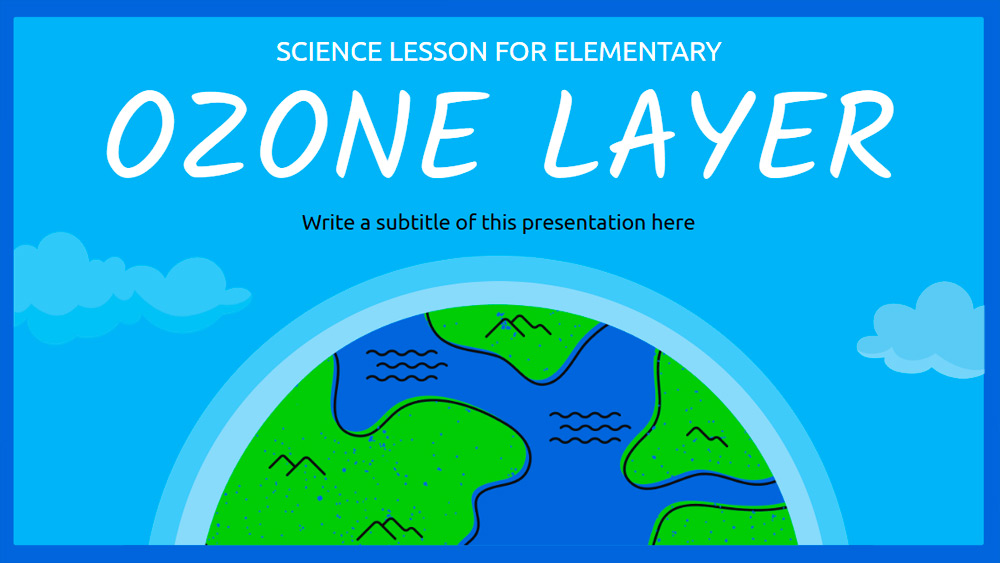


Elementary school teachers, here's an easy-to-use, blue-themed presentation created specifically to introduce the ozone layer to younger students. Ideal for both PowerPoint and Google Slides, this template will help you explain why the ozone layer is important and how we can protect it. The straightforward slides use clear images and simple language to make science fun and accessible for children. With this resource, you can keep your class engaged and make complicated ideas easy to understand, helping students understand the importance of protecting our atmosphere. Make your next science lesson memorable and engaging for your students with this useful tool.
Preview
Features
- 20 ready-to-use 16:9 slides, fully customizable to your needs.
- Hundreds of graphics, frames, lines, and shapes to choose from.
- Convenient animation and transition features for each slide.
- Easy download or share in a wide range of formats.
- Hundreds of graphics, frames, lines, and shapes to choose from.
- Convenient animation and transition features for each slide.
- Easy download or share in a wide range of formats.
How to download the Ozone Layer for Kids template for Powerpoint
1. On this same page, scroll down to the download block until you see the buttons.
2. Click on the button below the presentation features that says 'Download Ozone Layer for Kids as a Free PowerPoint template'.
3. Once done it will start downloading a .pptx file that you can edit in PowerPoint.
4. If we do not have the powerpoint file we will direct you to the original source so you can download it.
5. If the fonts used in the template are not on your computer, you should download and install them for the template to display correctly. You can find the fonts in the original font link.
Source: slidescarnival.com
2. Click on the button below the presentation features that says 'Download Ozone Layer for Kids as a Free PowerPoint template'.
3. Once done it will start downloading a .pptx file that you can edit in PowerPoint.
4. If we do not have the powerpoint file we will direct you to the original source so you can download it.
5. If the fonts used in the template are not on your computer, you should download and install them for the template to display correctly. You can find the fonts in the original font link.
Source: slidescarnival.com
How to download the template Ozone Layer for Kids in Google Slides
1. Just like the powerpoint version, scroll to the bottom of the template features.
2. You can now click on the button that says 'Use Ozone Layer for Kids as a Google Slides theme'.
3. A new window will open with a larger preview. If you want to use the template, click the Use template button in the upper right corner.
4. A copy of the document will be added to your Google Drive account and you will be able to edit, add or delete slides.
2. You can now click on the button that says 'Use Ozone Layer for Kids as a Google Slides theme'.
3. A new window will open with a larger preview. If you want to use the template, click the Use template button in the upper right corner.
4. A copy of the document will be added to your Google Drive account and you will be able to edit, add or delete slides.