


Jesus Feeds the Crowd
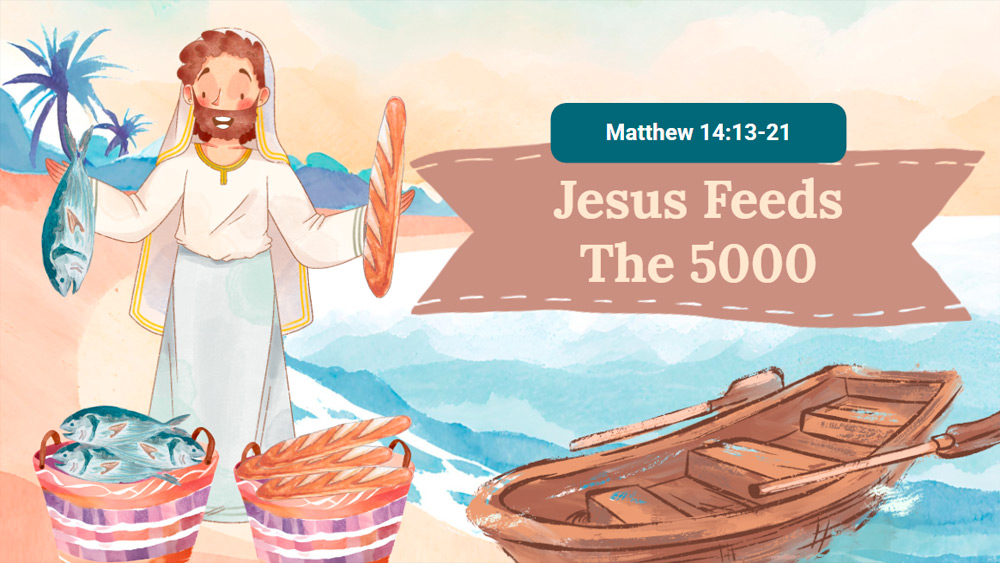


Make your Bible storytelling engaging and memorable with an animated watercolor slide template, designed for use in Sunday school, church meetings, or for anyone who wants to share inspiring stories. With vibrant and eye-catching designs featuring themes like seaside gatherings and the loaves and fishes, this presentation helps bring historical events closer to a modern audience. Ideal for illustrating parables or capturing attention during lessons, each slide is designed for clarity and visual interest. Some graphics use artificial effects to add a unique touch. Easily guide viewers through the story and make each moment stand out, helping listeners connect with the message in a fresh and impactful way.
Preview
Features
- 15 fully customizable 16:9 slides
- Hundreds of charts, frames, lines, and shapes
- Animations and transitions included
- Easy to download or share in various formats
- Hundreds of charts, frames, lines, and shapes
- Animations and transitions included
- Easy to download or share in various formats
How to download the Jesus Feeds the Crowd template for Powerpoint
1. On this same page, scroll down to the download block until you see the buttons.
2. Click on the button below the presentation features that says 'Download Jesus Feeds the Crowd as a Free PowerPoint template'.
3. Once done it will start downloading a .pptx file that you can edit in PowerPoint.
4. If we do not have the powerpoint file we will direct you to the original source so you can download it.
5. If the fonts used in the template are not on your computer, you should download and install them for the template to display correctly. You can find the fonts in the original font link.
Source: slidescarnival.com
2. Click on the button below the presentation features that says 'Download Jesus Feeds the Crowd as a Free PowerPoint template'.
3. Once done it will start downloading a .pptx file that you can edit in PowerPoint.
4. If we do not have the powerpoint file we will direct you to the original source so you can download it.
5. If the fonts used in the template are not on your computer, you should download and install them for the template to display correctly. You can find the fonts in the original font link.
Source: slidescarnival.com
How to download the template Jesus Feeds the Crowd in Google Slides
1. Just like the powerpoint version, scroll to the bottom of the template features.
2. You can now click on the button that says 'Use Jesus Feeds the Crowd as a Google Slides theme'.
3. A new window will open with a larger preview. If you want to use the template, click the Use template button in the upper right corner.
4. A copy of the document will be added to your Google Drive account and you will be able to edit, add or delete slides.
2. You can now click on the button that says 'Use Jesus Feeds the Crowd as a Google Slides theme'.
3. A new window will open with a larger preview. If you want to use the template, click the Use template button in the upper right corner.
4. A copy of the document will be added to your Google Drive account and you will be able to edit, add or delete slides.