


Anxiety Overview
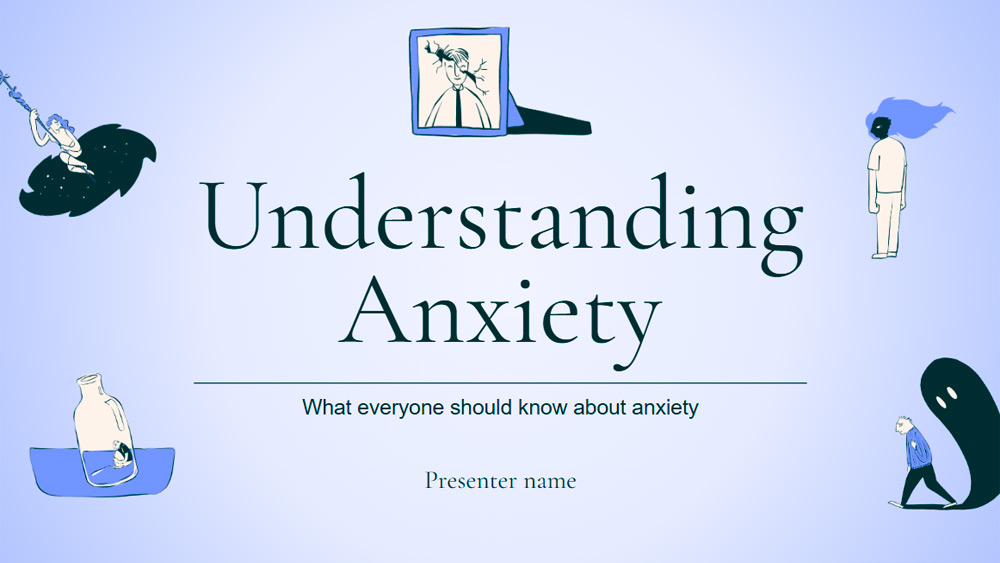


Do you need a clear way to explain anxiety without overwhelming your audience? This illustrated presentation template is an ideal choice for healthcare professionals and educators who want to share important information in an accessible format. With calming blue tones and carefully selected images, it helps simplify complex ideas and keep viewers engaged from beginning to end. Whether you're leading a workshop, teaching a class, or preparing a professional talk, this presentation reinforces your message with a clean and polished design. It makes it easy to present key points about anxiety in an organized, informative, and visually appealing way, while also encouraging understanding and discussion.
Preview
Features
- 14 fully editable 16:9 slides
- Dozens of charts, frames, lines, and shapes
- Easy animations and slide transitions
- Fast download and shareable in numerous formats
- Dozens of charts, frames, lines, and shapes
- Easy animations and slide transitions
- Fast download and shareable in numerous formats
How to download the Anxiety Overview template for Powerpoint
1. On this same page, scroll down to the download block until you see the buttons.
2. Click on the button below the presentation features that says 'Download Anxiety Overview as a Free PowerPoint template'.
3. Once done it will start downloading a .pptx file that you can edit in PowerPoint.
4. If we do not have the powerpoint file we will direct you to the original source so you can download it.
5. If the fonts used in the template are not on your computer, you should download and install them for the template to display correctly. You can find the fonts in the original font link.
Source: slidescarnival.com
2. Click on the button below the presentation features that says 'Download Anxiety Overview as a Free PowerPoint template'.
3. Once done it will start downloading a .pptx file that you can edit in PowerPoint.
4. If we do not have the powerpoint file we will direct you to the original source so you can download it.
5. If the fonts used in the template are not on your computer, you should download and install them for the template to display correctly. You can find the fonts in the original font link.
Source: slidescarnival.com
How to download the template Anxiety Overview in Google Slides
1. Just like the powerpoint version, scroll to the bottom of the template features.
2. You can now click on the button that says 'Use Anxiety Overview as a Google Slides theme'.
3. A new window will open with a larger preview. If you want to use the template, click the Use template button in the upper right corner.
4. A copy of the document will be added to your Google Drive account and you will be able to edit, add or delete slides.
2. You can now click on the button that says 'Use Anxiety Overview as a Google Slides theme'.
3. A new window will open with a larger preview. If you want to use the template, click the Use template button in the upper right corner.
4. A copy of the document will be added to your Google Drive account and you will be able to edit, add or delete slides.