


Travel Wrapped
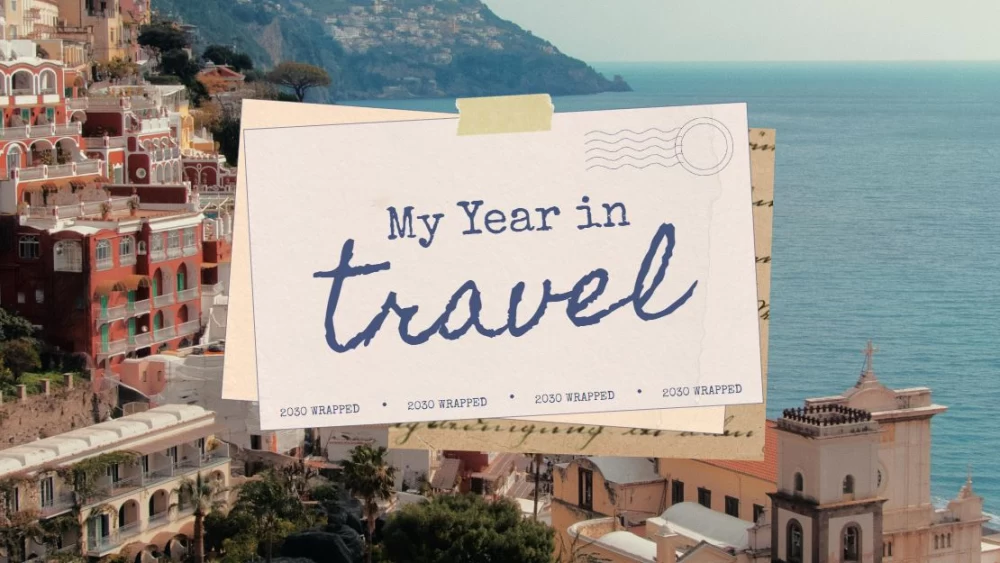


Turn your travel memories into a captivating visual story with this lively presentation template. Whether you’ve visited faraway countries or have just enjoyed your first getaway, it offers an elegant way to showcase photos, favorite moments, and personal reflections. Its collage-inspired design combines cool blue tones with warm beige accents, creating a relaxed and stylish background that keeps your images and stories in the spotlight. Use it for travel blogs, vacation recaps, school projects, or to share adventures with your loved ones. Bring each destination to life, spark happy memories, and encourage others to start planning their next unforgettable trip with a presentation that feels personal and welcoming.
Preview
Features
- 11 customizable 16:9 slides
- Hundreds of graphics, frames, lines, and shapes
- Simple animations and transitions
- Download or share in multiple formats
- Hundreds of graphics, frames, lines, and shapes
- Simple animations and transitions
- Download or share in multiple formats
How to download the Travel Wrapped template for Powerpoint
1. On this same page, scroll down to the download block until you see the buttons.
2. Click on the button below the presentation features that says 'Download Travel Wrapped as a Free PowerPoint template'.
3. Once done it will start downloading a .pptx file that you can edit in PowerPoint.
4. If we do not have the powerpoint file we will direct you to the original source so you can download it.
5. If the fonts used in the template are not on your computer, you should download and install them for the template to display correctly. You can find the fonts in the original font link.
Source: slidescarnival.com
2. Click on the button below the presentation features that says 'Download Travel Wrapped as a Free PowerPoint template'.
3. Once done it will start downloading a .pptx file that you can edit in PowerPoint.
4. If we do not have the powerpoint file we will direct you to the original source so you can download it.
5. If the fonts used in the template are not on your computer, you should download and install them for the template to display correctly. You can find the fonts in the original font link.
Source: slidescarnival.com
How to download the template Travel Wrapped in Google Slides
1. Just like the powerpoint version, scroll to the bottom of the template features.
2. You can now click on the button that says 'Use Travel Wrapped as a Google Slides theme'.
3. A new window will open with a larger preview. If you want to use the template, click the Use template button in the upper right corner.
4. A copy of the document will be added to your Google Drive account and you will be able to edit, add or delete slides.
2. You can now click on the button that says 'Use Travel Wrapped as a Google Slides theme'.
3. A new window will open with a larger preview. If you want to use the template, click the Use template button in the upper right corner.
4. A copy of the document will be added to your Google Drive account and you will be able to edit, add or delete slides.