


Kraft Gift Guide
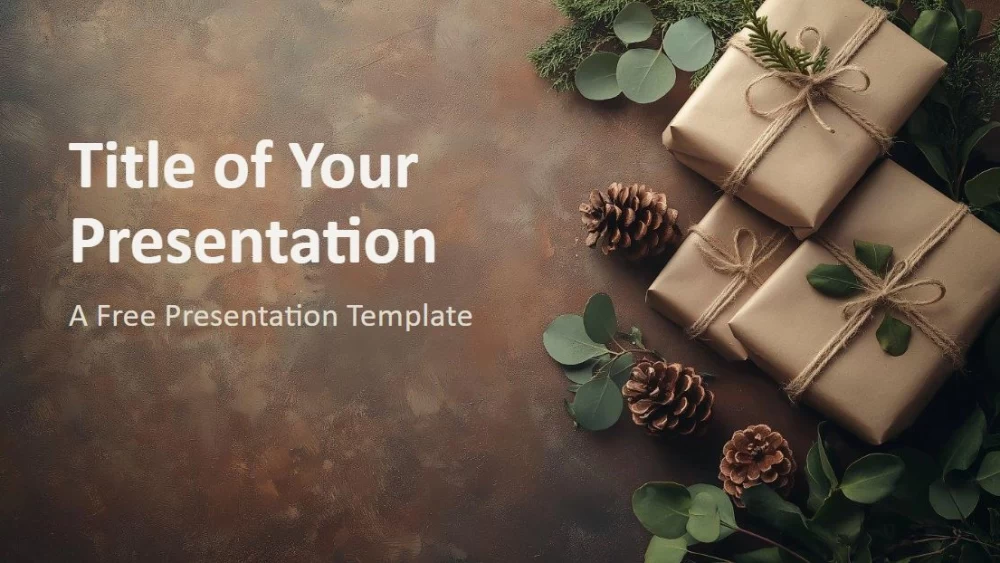


Inspired by flat lay photography, this presentation template combines carefully arranged gifts, twine, greenery, and textured kraft paper details to create a warm, natural look. Soft beige, rich brown, and dark green tones create a balanced style that is both welcoming and professional. It is ideal for festive event proposals, charity campaigns, marketing plans, mood boards, brand presentations, and school projects. Text and image placeholders make customization easy, allowing users to replace the content and adapt the design to any theme. The template includes six slides and a color reference page, and all elements can be edited through the master slide. The last slide includes an image placeholder, and the design is available in 16:9 format for PowerPoint and Google Slides.
Preview
Features
- 6 slides with a color palette
- Easy master slide editing
- Text and image placeholders
- Widescreen format
- Compatible with PowerPoint and Google Slides
- Easy master slide editing
- Text and image placeholders
- Widescreen format
- Compatible with PowerPoint and Google Slides
How to download the Kraft Gift Guide template for Powerpoint
1. On this same page, scroll down to the download block until you see the buttons.
2. Click on the button below the presentation features that says 'Download Kraft Gift Guide as a Free PowerPoint template'.
3. Once done it will start downloading a .pptx file that you can edit in PowerPoint.
4. If we do not have the powerpoint file we will direct you to the original source so you can download it.
5. If the fonts used in the template are not on your computer, you should download and install them for the template to display correctly. You can find the fonts in the original font link.
Source: presentationgo.com
2. Click on the button below the presentation features that says 'Download Kraft Gift Guide as a Free PowerPoint template'.
3. Once done it will start downloading a .pptx file that you can edit in PowerPoint.
4. If we do not have the powerpoint file we will direct you to the original source so you can download it.
5. If the fonts used in the template are not on your computer, you should download and install them for the template to display correctly. You can find the fonts in the original font link.
Source: presentationgo.com
How to download the template Kraft Gift Guide in Google Slides
1. Just like the powerpoint version, scroll to the bottom of the template features.
2. You can now click on the button that says 'Use Kraft Gift Guide as a Google Slides theme'.
3. A new window will open with a larger preview. If you want to use the template, click the Use template button in the upper right corner.
4. A copy of the document will be added to your Google Drive account and you will be able to edit, add or delete slides.
2. You can now click on the button that says 'Use Kraft Gift Guide as a Google Slides theme'.
3. A new window will open with a larger preview. If you want to use the template, click the Use template button in the upper right corner.
4. A copy of the document will be added to your Google Drive account and you will be able to edit, add or delete slides.