


Spring Rustic
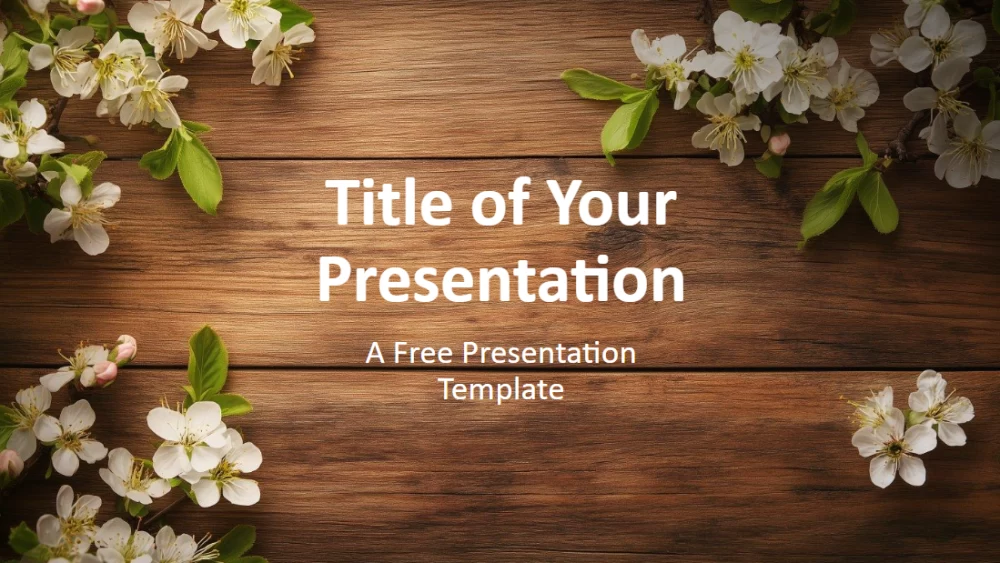


Bring a natural, refined touch to your presentation with a rustic wood background, delicate white flowers, and fresh greenery. Warm brown hues, soft greens, and neutral tones create a serene look, while the varied floral arrangements keep the slides visually interesting without distracting from your message. Ideal for wellness, education, environmental, seasonal event, and creative projects, this design suits everything from spring workshops to wedding presentations. Customize the text, fonts, and images to suit your needs. The template includes six editable slides and an additional slide featuring its color palette and typography. Created with Slide Master, it is available in 16:9 format for PowerPoint and Google Slides, with placeholders for text and an image on the closing slide.
Preview
Features
- 6 slides plus a color palette
- Easy editing with the master template
- Includes placeholders for text and images
- Widescreen format
- Compatible with PowerPoint and Google Slides
How to download the Spring Rustic template for Powerpoint
1. On this same page, scroll down to the download block until you see the buttons.
2. Click on the button below the presentation features that says 'Download Spring Rustic as a Free PowerPoint template'.
3. Once done it will start downloading a .pptx file that you can edit in PowerPoint.
4. If we do not have the powerpoint file we will direct you to the original source so you can download it.
5. If the fonts used in the template are not on your computer, you should download and install them for the template to display correctly. You can find the fonts in the original font link.
Source: presentationgo.com
How to download the template Spring Rustic in Google Slides
1. Just like the powerpoint version, scroll to the bottom of the template features.
2. You can now click on the button that says 'Use Spring Rustic as a Google Slides theme'.
3. A new window will open with a larger preview. If you want to use the template, click the Use template button in the upper right corner.
4. A copy of the document will be added to your Google Drive account and you will be able to edit, add or delete slides.