


Clock
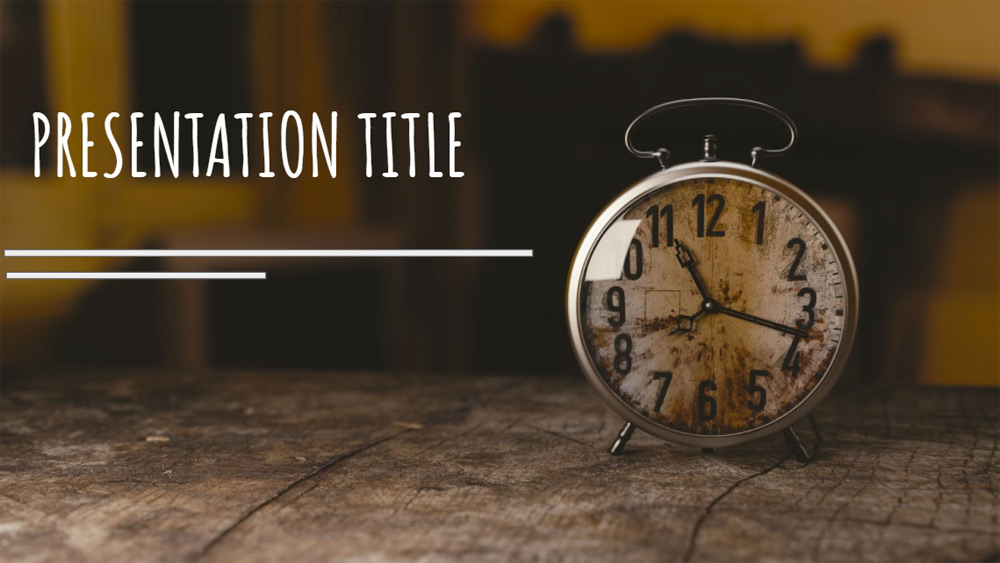


Using this Google Slides theme is a great option for your watch presentation. The slideshow design is full of images with clocks that allow you to display all kinds of information. It can be used in your class presentation if you are talking about the time. But it could be a new way to show a new project. The slides are completed with information that can be used in your own script in the creation of your presentation or can be edited. The photos, fonts and background are completely editable. All resources that have been included to be used in the presentation can be changed or used in your presentation. Enjoy the theme of the clocks!
Preview
Features
- Remember that you must be connected to the Google unit in order to make a copy of the template and work with it.
- Fully editable slide themes with images related to triangles and geometric shapes.
- 26 different slides with different content than your presentation.
- All slides form a script that you can follow in your presentation.
- Includes tables, charts, maps and graphic icons that you can use or remove.
- Ratio 16/9, you can go to 4/3. Images and icons can be discarded, or lose proportion with the change.
- You can also download this presentation as a Powerpoint theme and work with it on your computer.
- Fully editable slide themes with images related to triangles and geometric shapes.
- 26 different slides with different content than your presentation.
- All slides form a script that you can follow in your presentation.
- Includes tables, charts, maps and graphic icons that you can use or remove.
- Ratio 16/9, you can go to 4/3. Images and icons can be discarded, or lose proportion with the change.
- You can also download this presentation as a Powerpoint theme and work with it on your computer.
How to download the Clock template for Powerpoint
1. On this same page, scroll down to the download block until you see the buttons.
2. Click on the button below the presentation features that says 'Download Clock as a Free PowerPoint template'.
3. Once done it will start downloading a .pptx file that you can edit in PowerPoint.
4. If we do not have the powerpoint file we will direct you to the original source so you can download it.
5. If the fonts used in the template are not on your computer, you should download and install them for the template to display correctly. You can find the fonts in the original font link.
Source: slidespower.com
2. Click on the button below the presentation features that says 'Download Clock as a Free PowerPoint template'.
3. Once done it will start downloading a .pptx file that you can edit in PowerPoint.
4. If we do not have the powerpoint file we will direct you to the original source so you can download it.
5. If the fonts used in the template are not on your computer, you should download and install them for the template to display correctly. You can find the fonts in the original font link.
Source: slidespower.com
How to download the template Clock in Google Slides
1. Just like the powerpoint version, scroll to the bottom of the template features.
2. You can now click on the button that says 'Use Clock as a Google Slides theme'.
3. A new window will open with a larger preview. If you want to use the template, click the Use template button in the upper right corner.
4. A copy of the document will be added to your Google Drive account and you will be able to edit, add or delete slides.
2. You can now click on the button that says 'Use Clock as a Google Slides theme'.
3. A new window will open with a larger preview. If you want to use the template, click the Use template button in the upper right corner.
4. A copy of the document will be added to your Google Drive account and you will be able to edit, add or delete slides.