


Customizable Desktop Organizer
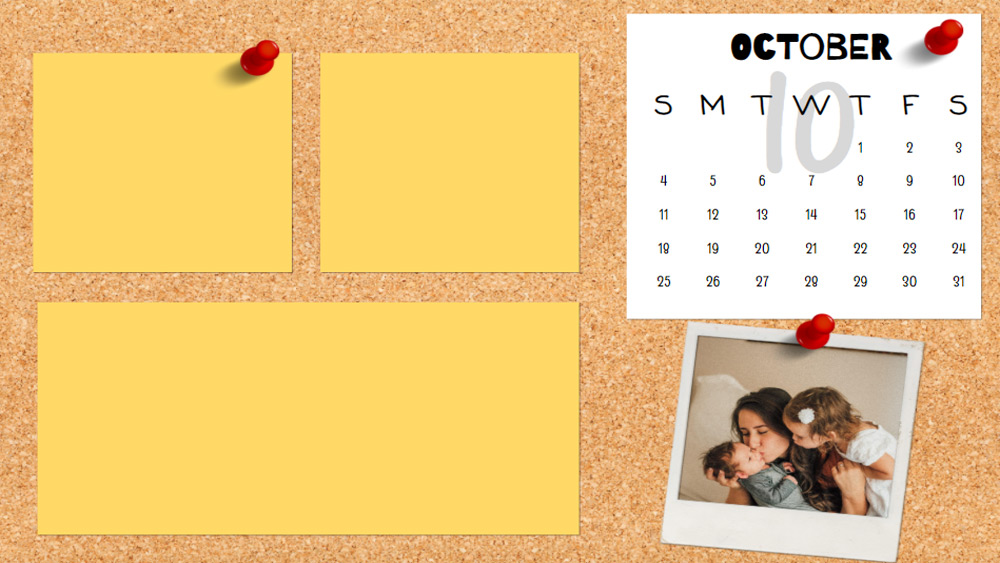


This is a different type of template. This time we are sharing customizable wallpapers from desktop organizers.
If you have a lot of shortcuts, files and applications on your desktop, these wallpapers are a lifesaver! You can place the icons within each category to make them easy to find.
We have included a monthly calendar on each slide, from November 2019 to December 2020. We have also added some stickers related to the seasons.
If you are reading us from the southern hemisphere, just change the stickers to suit the seasons there.
Everything is 100% customizable, you are free to change the background, fonts, titles, colors and even add your own stickers. Once you have finished editing, download each slide as a JPG for Google Slides or save the whole deck as a JPG if you work in PowerPoint, and use the images as wallpapers.
To adjust your screen resolution, you will need to check your laptop or desktop settings and change the Page Setup settings accordingly. This template is set to 3240 x 2160 px.
If you have a lot of shortcuts, files and applications on your desktop, these wallpapers are a lifesaver! You can place the icons within each category to make them easy to find.
We have included a monthly calendar on each slide, from November 2019 to December 2020. We have also added some stickers related to the seasons.
If you are reading us from the southern hemisphere, just change the stickers to suit the seasons there.
Everything is 100% customizable, you are free to change the background, fonts, titles, colors and even add your own stickers. Once you have finished editing, download each slide as a JPG for Google Slides or save the whole deck as a JPG if you work in PowerPoint, and use the images as wallpapers.
To adjust your screen resolution, you will need to check your laptop or desktop settings and change the Page Setup settings accordingly. This template is set to 3240 x 2160 px.
Preview
Features
- 100% editable and easy to modify
- 10 different slides
- Designed to be used in Google Slides and Microsoft PowerPoint
- 16:9 widescreen format suitable for all types of screens
- Contains editable graphics and maps
- 10 different slides
- Designed to be used in Google Slides and Microsoft PowerPoint
- 16:9 widescreen format suitable for all types of screens
- Contains editable graphics and maps
How to download the Customizable Desktop Organizer template for Powerpoint
1. On this same page, scroll down to the download block until you see the buttons.
2. Click on the button below the presentation features that says 'Download Customizable Desktop Organizer as a Free PowerPoint template'.
3. Once done it will start downloading a .pptx file that you can edit in PowerPoint.
4. If we do not have the powerpoint file we will direct you to the original source so you can download it.
5. If the fonts used in the template are not on your computer, you should download and install them for the template to display correctly. You can find the fonts in the original font link.
Source: slidesmania.com
2. Click on the button below the presentation features that says 'Download Customizable Desktop Organizer as a Free PowerPoint template'.
3. Once done it will start downloading a .pptx file that you can edit in PowerPoint.
4. If we do not have the powerpoint file we will direct you to the original source so you can download it.
5. If the fonts used in the template are not on your computer, you should download and install them for the template to display correctly. You can find the fonts in the original font link.
Source: slidesmania.com
How to download the template Customizable Desktop Organizer in Google Slides
1. Just like the powerpoint version, scroll to the bottom of the template features.
2. You can now click on the button that says 'Use Customizable Desktop Organizer as a Google Slides theme'.
3. A new window will open with a larger preview. If you want to use the template, click the Use template button in the upper right corner.
4. A copy of the document will be added to your Google Drive account and you will be able to edit, add or delete slides.
2. You can now click on the button that says 'Use Customizable Desktop Organizer as a Google Slides theme'.
3. A new window will open with a larger preview. If you want to use the template, click the Use template button in the upper right corner.
4. A copy of the document will be added to your Google Drive account and you will be able to edit, add or delete slides.