


Party Challenge Board
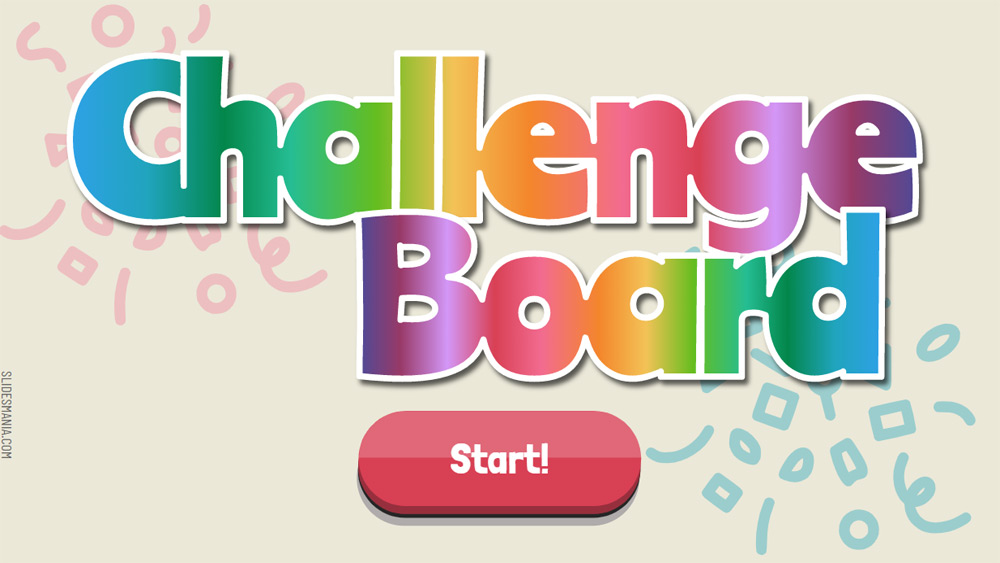


I got the idea for this template from Pam Hubler. She created an incredible board of training options (you can check it out here), and I fell in love with the concept of the pop-up.
And since I seem to be going through a phase of the game's user interface, I created this Challenge Board template for Google Slides or PowerPoint, using the same concept. It can be used as a dashboard for options, daily activities, virtual treasure hunts or even for a fun PD session to introduce must have applications, for example.
Little by little I will challenge you to work a little more on the master.
I know that some of you find it hard to use, but once you get it, you will realize that it is very useful. To edit this template, follow the video below.
If you only want to change the text of the buttons, but not the icons, click on Edit > Search and Replace - Search: TITLE ONE / Replace with: YOUR TITLE
And since I seem to be going through a phase of the game's user interface, I created this Challenge Board template for Google Slides or PowerPoint, using the same concept. It can be used as a dashboard for options, daily activities, virtual treasure hunts or even for a fun PD session to introduce must have applications, for example.
Little by little I will challenge you to work a little more on the master.
I know that some of you find it hard to use, but once you get it, you will realize that it is very useful. To edit this template, follow the video below.
If you only want to change the text of the buttons, but not the icons, click on Edit > Search and Replace - Search: TITLE ONE / Replace with: YOUR TITLE
Preview
Features
- 100% editable and easy to modify
- 20 different slides
- Designed to be used in Google Slides and Microsoft PowerPoint
- 16:9 widescreen format suitable for all types of screens
- Contains editable graphics and maps
- 20 different slides
- Designed to be used in Google Slides and Microsoft PowerPoint
- 16:9 widescreen format suitable for all types of screens
- Contains editable graphics and maps
How to download the Party Challenge Board template for Powerpoint
1. On this same page, scroll down to the download block until you see the buttons.
2. Click on the button below the presentation features that says 'Download Party Challenge Board as a Free PowerPoint template'.
3. Once done it will start downloading a .pptx file that you can edit in PowerPoint.
4. If we do not have the powerpoint file we will direct you to the original source so you can download it.
5. If the fonts used in the template are not on your computer, you should download and install them for the template to display correctly. You can find the fonts in the original font link.
Source: slidesmania.com
2. Click on the button below the presentation features that says 'Download Party Challenge Board as a Free PowerPoint template'.
3. Once done it will start downloading a .pptx file that you can edit in PowerPoint.
4. If we do not have the powerpoint file we will direct you to the original source so you can download it.
5. If the fonts used in the template are not on your computer, you should download and install them for the template to display correctly. You can find the fonts in the original font link.
Source: slidesmania.com
How to download the template Party Challenge Board in Google Slides
1. Just like the powerpoint version, scroll to the bottom of the template features.
2. You can now click on the button that says 'Use Party Challenge Board as a Google Slides theme'.
3. A new window will open with a larger preview. If you want to use the template, click the Use template button in the upper right corner.
4. A copy of the document will be added to your Google Drive account and you will be able to edit, add or delete slides.
2. You can now click on the button that says 'Use Party Challenge Board as a Google Slides theme'.
3. A new window will open with a larger preview. If you want to use the template, click the Use template button in the upper right corner.
4. A copy of the document will be added to your Google Drive account and you will be able to edit, add or delete slides.