


Study Space
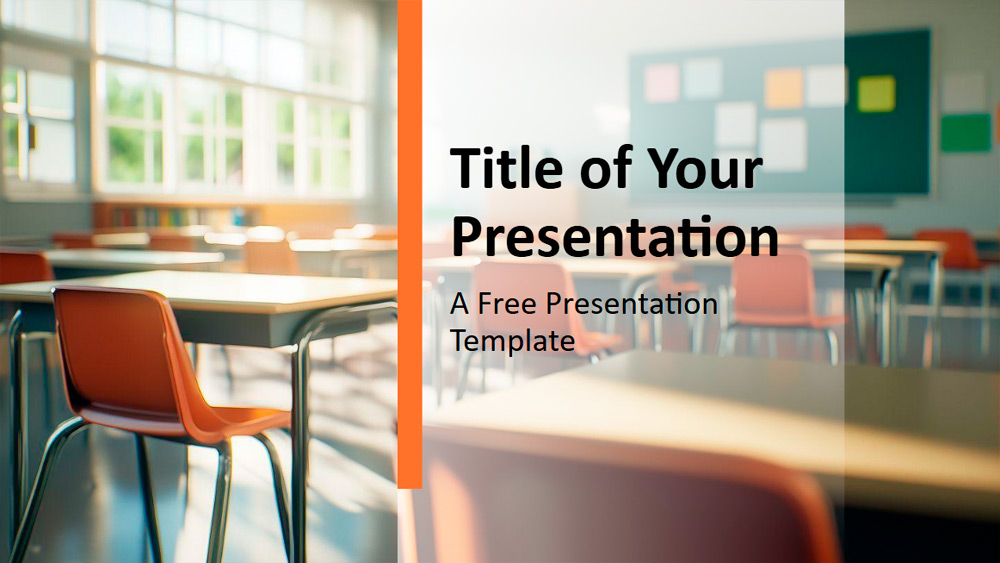


This template features sunlit classrooms with wooden desks and chairs, softened by natural light streaming through large windows. Its warm orange, golden yellow, and soft green tones, along with touches of blue, create a comfortable and tranquil atmosphere, while the clean, minimalist design keeps the focus on the content. Blurred backgrounds add focus and unity without distractions. Perfect for a variety of users, such as teachers leading classes, administrators conducting meetings, or students preparing projects, it adapts to many educational needs. Simply adjust the colors to match your educational institution's branding or add educational icons for further customization. The template includes six main slides and a color and font reference, uses Slide Master for easy editing, and offers placeholders for text and photos. In landscape format, it works seamlessly in both PowerPoint and Google Slides, providing a practical and engaging background for any academic presentation.
Preview
Features
- 6 slides plus a color palette slide.
- Quick editing with SlideMaster.
- Includes placeholders for text and images.
- Widescreen layout.
- For PowerPoint and Google Slides.
- Quick editing with SlideMaster.
- Includes placeholders for text and images.
- Widescreen layout.
- For PowerPoint and Google Slides.
How to download the Study Space template for Powerpoint
1. On this same page, scroll down to the download block until you see the buttons.
2. Click on the button below the presentation features that says 'Download Study Space as a Free PowerPoint template'.
3. Once done it will start downloading a .pptx file that you can edit in PowerPoint.
4. If we do not have the powerpoint file we will direct you to the original source so you can download it.
5. If the fonts used in the template are not on your computer, you should download and install them for the template to display correctly. You can find the fonts in the original font link.
Source: pptmon.com
2. Click on the button below the presentation features that says 'Download Study Space as a Free PowerPoint template'.
3. Once done it will start downloading a .pptx file that you can edit in PowerPoint.
4. If we do not have the powerpoint file we will direct you to the original source so you can download it.
5. If the fonts used in the template are not on your computer, you should download and install them for the template to display correctly. You can find the fonts in the original font link.
Source: pptmon.com
How to download the template Study Space in Google Slides
1. Just like the powerpoint version, scroll to the bottom of the template features.
2. You can now click on the button that says 'Use Study Space as a Google Slides theme'.
3. A new window will open with a larger preview. If you want to use the template, click the Use template button in the upper right corner.
4. A copy of the document will be added to your Google Drive account and you will be able to edit, add or delete slides.
2. You can now click on the button that says 'Use Study Space as a Google Slides theme'.
3. A new window will open with a larger preview. If you want to use the template, click the Use template button in the upper right corner.
4. A copy of the document will be added to your Google Drive account and you will be able to edit, add or delete slides.