


Santa’s Budget Guide
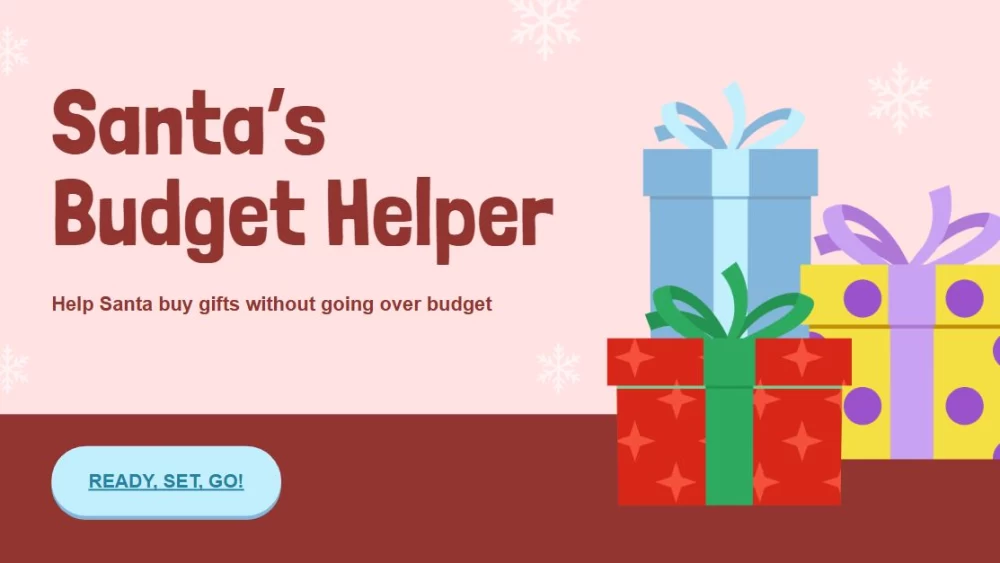


Encourage smart spending with this interactive holiday presentation, where students become Santa’s helpers to create a budget and learn essential financial skills through festive activities. Its eye-catching pink and red illustrations capture children’s attention while making financial lessons fun and accessible. Use it to explain gift prices, compare options, create a holiday budget, or plan a seasonal event. Its playful design turns topics such as saving, spending, and decision-making into an engaging school adventure. With cheerful images and student-friendly content, this template helps younger learners understand responsible money management while enjoying the excitement and magic of the Christmas season.
Preview
Features
- 11 customizable 16:9 slides
- Hundreds of graphics, shapes, frames, and lines
- Simple animations and transitions
- Download or share in multiple formats
- Hundreds of graphics, shapes, frames, and lines
- Simple animations and transitions
- Download or share in multiple formats
How to download the Santa’s Budget Guide template for Powerpoint
1. On this same page, scroll down to the download block until you see the buttons.
2. Click on the button below the presentation features that says 'Download Santa’s Budget Guide as a Free PowerPoint template'.
3. Once done it will start downloading a .pptx file that you can edit in PowerPoint.
4. If we do not have the powerpoint file we will direct you to the original source so you can download it.
5. If the fonts used in the template are not on your computer, you should download and install them for the template to display correctly. You can find the fonts in the original font link.
Source: slidescarnival.com
2. Click on the button below the presentation features that says 'Download Santa’s Budget Guide as a Free PowerPoint template'.
3. Once done it will start downloading a .pptx file that you can edit in PowerPoint.
4. If we do not have the powerpoint file we will direct you to the original source so you can download it.
5. If the fonts used in the template are not on your computer, you should download and install them for the template to display correctly. You can find the fonts in the original font link.
Source: slidescarnival.com
How to download the template Santa’s Budget Guide in Google Slides
1. Just like the powerpoint version, scroll to the bottom of the template features.
2. You can now click on the button that says 'Use Santa’s Budget Guide as a Google Slides theme'.
3. A new window will open with a larger preview. If you want to use the template, click the Use template button in the upper right corner.
4. A copy of the document will be added to your Google Drive account and you will be able to edit, add or delete slides.
2. You can now click on the button that says 'Use Santa’s Budget Guide as a Google Slides theme'.
3. A new window will open with a larger preview. If you want to use the template, click the Use template button in the upper right corner.
4. A copy of the document will be added to your Google Drive account and you will be able to edit, add or delete slides.