


Lucky Stone
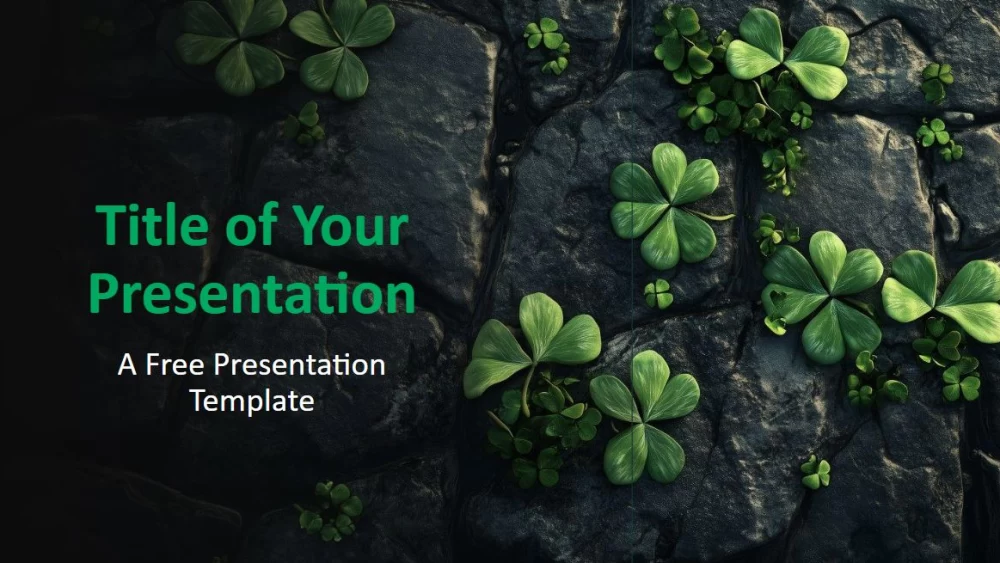


Stone textures and deep green clovers give this presentation template a calm, natural look, while its dark gray and green color palette enhances the clarity and readability of the content. The illustrations have a consistent style, combining realistic details with an artistic touch, making the design ideal for educators, sustainability advocates, business professionals, marketing specialists, event organizers, and motivational speakers. Use it for environmental topics, eco-friendly products, growth-related themes, or St. Patrick’s Day presentations. The seven-slide set includes six content slides and a style preview, with editable text, flexible layouts, and a photo placeholder on the final slide. Customize it through the master template to create a cohesive 16:9 presentation in PowerPoint or Google Slides.
Preview
Features
- 6 slides and a color palette
- Easy to customize with the master template
- Includes placeholders for text and images
- Widescreen compatible, PowerPoint and Google Slides
- Easy to customize with the master template
- Includes placeholders for text and images
- Widescreen compatible, PowerPoint and Google Slides
How to download the Lucky Stone template for Powerpoint
1. On this same page, scroll down to the download block until you see the buttons.
2. Click on the button below the presentation features that says 'Download Lucky Stone as a Free PowerPoint template'.
3. Once done it will start downloading a .pptx file that you can edit in PowerPoint.
4. If we do not have the powerpoint file we will direct you to the original source so you can download it.
5. If the fonts used in the template are not on your computer, you should download and install them for the template to display correctly. You can find the fonts in the original font link.
Source: presentationgo.com
2. Click on the button below the presentation features that says 'Download Lucky Stone as a Free PowerPoint template'.
3. Once done it will start downloading a .pptx file that you can edit in PowerPoint.
4. If we do not have the powerpoint file we will direct you to the original source so you can download it.
5. If the fonts used in the template are not on your computer, you should download and install them for the template to display correctly. You can find the fonts in the original font link.
Source: presentationgo.com
How to download the template Lucky Stone in Google Slides
1. Just like the powerpoint version, scroll to the bottom of the template features.
2. You can now click on the button that says 'Use Lucky Stone as a Google Slides theme'.
3. A new window will open with a larger preview. If you want to use the template, click the Use template button in the upper right corner.
4. A copy of the document will be added to your Google Drive account and you will be able to edit, add or delete slides.
2. You can now click on the button that says 'Use Lucky Stone as a Google Slides theme'.
3. A new window will open with a larger preview. If you want to use the template, click the Use template button in the upper right corner.
4. A copy of the document will be added to your Google Drive account and you will be able to edit, add or delete slides.