


Gniezno
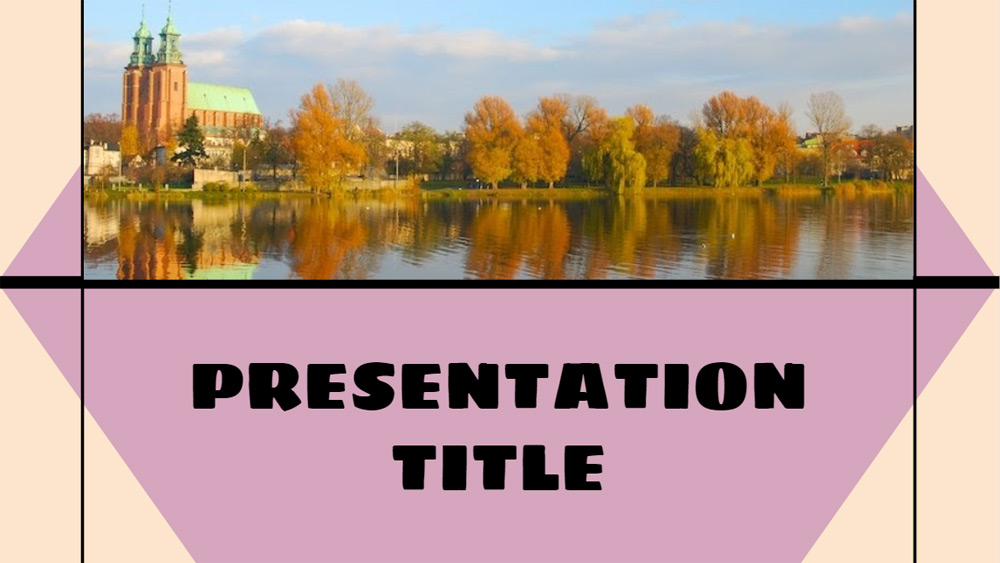


This simple Google Slide theme is a perfect way to present ideas in a stylish way. The template has a very neutral style with pink and orange background that can be adapted whatever your information is. This is a simple fully editable template that is perfect for adapting the look to your needs. It is a clear design with visual icons that can help in your presentation. In the following parts of the Google Slides theme, you have images and text that can be edited. The images used are from Central Park, the city of Gniezno (Germany) and some technology images. The icons have been chosen to reflect the texts that are on the slides. A colorful cover slide can also be changed. Everything is ready to adapt the template to your information by adding images, colors or icons. Let's prepare your topic to talk about and explain your ideas with this theme.
Preview
Features
- Remember that you must be connected to the Google unit in order to make a copy of the template and work with it.
- 25 different Google slides based on an elegant template.
- You can customize all the slides, changing the colors and photos.
- Colorful background slides with a sober style in the template that can be used at different times.
- Various icons, maps, charts and tables to build your messages.
- The internal text of this presentation is a good way to show your ideas.
- Ratio 16/9, you can go to 4/3. Images and icons can be discarded, or lose proportion with the change.
- You can also download this presentation as a Powerpoint file and work with it on your computer.
- 25 different Google slides based on an elegant template.
- You can customize all the slides, changing the colors and photos.
- Colorful background slides with a sober style in the template that can be used at different times.
- Various icons, maps, charts and tables to build your messages.
- The internal text of this presentation is a good way to show your ideas.
- Ratio 16/9, you can go to 4/3. Images and icons can be discarded, or lose proportion with the change.
- You can also download this presentation as a Powerpoint file and work with it on your computer.
How to download the Gniezno template for Powerpoint
1. On this same page, scroll down to the download block until you see the buttons.
2. Click on the button below the presentation features that says 'Download Gniezno as a Free PowerPoint template'.
3. Once done it will start downloading a .pptx file that you can edit in PowerPoint.
4. If we do not have the powerpoint file we will direct you to the original source so you can download it.
5. If the fonts used in the template are not on your computer, you should download and install them for the template to display correctly. You can find the fonts in the original font link.
Source: slidespower.com
2. Click on the button below the presentation features that says 'Download Gniezno as a Free PowerPoint template'.
3. Once done it will start downloading a .pptx file that you can edit in PowerPoint.
4. If we do not have the powerpoint file we will direct you to the original source so you can download it.
5. If the fonts used in the template are not on your computer, you should download and install them for the template to display correctly. You can find the fonts in the original font link.
Source: slidespower.com
How to download the template Gniezno in Google Slides
1. Just like the powerpoint version, scroll to the bottom of the template features.
2. You can now click on the button that says 'Use Gniezno as a Google Slides theme'.
3. A new window will open with a larger preview. If you want to use the template, click the Use template button in the upper right corner.
4. A copy of the document will be added to your Google Drive account and you will be able to edit, add or delete slides.
2. You can now click on the button that says 'Use Gniezno as a Google Slides theme'.
3. A new window will open with a larger preview. If you want to use the template, click the Use template button in the upper right corner.
4. A copy of the document will be added to your Google Drive account and you will be able to edit, add or delete slides.