


Blue Christmas
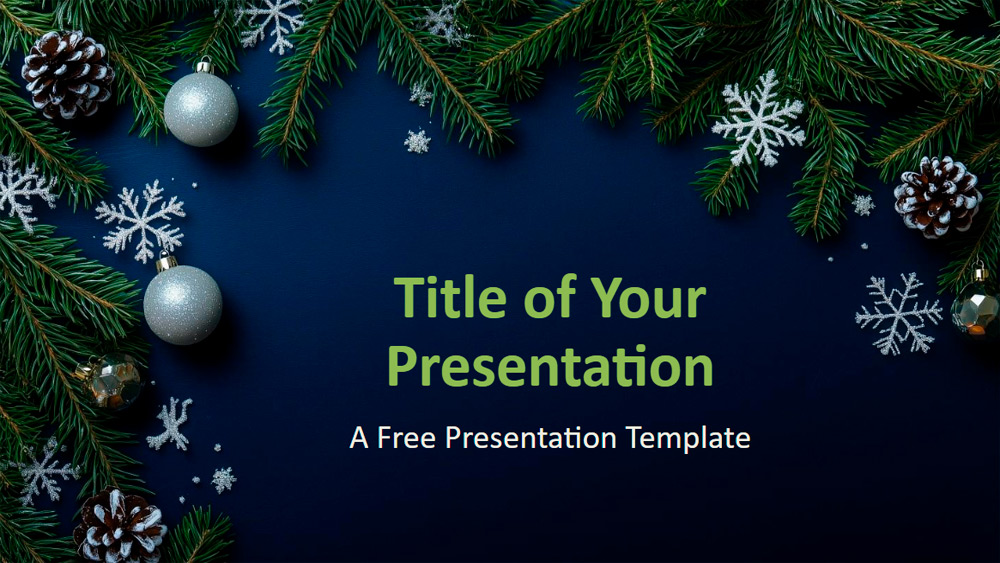


Christmas brings a warm and magical atmosphere capable of transforming even the simplest moments into unforgettable memories. This template reflects that spirit with a rich midnight blue background, adorned with evergreen branches, silver ornaments, snowflakes, pinecones, and shimmering details that create a festive and refined look. The colors combine navy, green, silver, and white for a balanced design that is both elegant and perfectly suited to the season. It's an ideal choice for year-end reports, holiday campaigns, event plans, or class summaries, and can also be used by businesses, non-profit organizations, teachers, and students. With editable text and image areas, plus a thank-you slide that includes space for a presenter photo, the design is easy to customize. It includes six slides, a color and font preview, widescreen formatting, and works in both PowerPoint and Google Slides.
Preview
Features
- 6 slides plus a color palette slide
- Easy to edit with the master template
- Includes placeholders for text and images
- Widescreen layout
- Compatible with PowerPoint and Google Slides
- Easy to edit with the master template
- Includes placeholders for text and images
- Widescreen layout
- Compatible with PowerPoint and Google Slides
How to download the Blue Christmas template for Powerpoint
1. On this same page, scroll down to the download block until you see the buttons.
2. Click on the button below the presentation features that says 'Download Blue Christmas as a Free PowerPoint template'.
3. Once done it will start downloading a .pptx file that you can edit in PowerPoint.
4. If we do not have the powerpoint file we will direct you to the original source so you can download it.
5. If the fonts used in the template are not on your computer, you should download and install them for the template to display correctly. You can find the fonts in the original font link.
Source: presentationgo.com
2. Click on the button below the presentation features that says 'Download Blue Christmas as a Free PowerPoint template'.
3. Once done it will start downloading a .pptx file that you can edit in PowerPoint.
4. If we do not have the powerpoint file we will direct you to the original source so you can download it.
5. If the fonts used in the template are not on your computer, you should download and install them for the template to display correctly. You can find the fonts in the original font link.
Source: presentationgo.com
How to download the template Blue Christmas in Google Slides
1. Just like the powerpoint version, scroll to the bottom of the template features.
2. You can now click on the button that says 'Use Blue Christmas as a Google Slides theme'.
3. A new window will open with a larger preview. If you want to use the template, click the Use template button in the upper right corner.
4. A copy of the document will be added to your Google Drive account and you will be able to edit, add or delete slides.
2. You can now click on the button that says 'Use Blue Christmas as a Google Slides theme'.
3. A new window will open with a larger preview. If you want to use the template, click the Use template button in the upper right corner.
4. A copy of the document will be added to your Google Drive account and you will be able to edit, add or delete slides.